Defects
A defect records a problem found during testing. In Appsvio Test Management (ATM), a defect is a Jira work item. Your Testing Project can map defects to one or more spaces and work types, for example Bug. This mapping is optional. See Testing Elements.
You add defects while you run a test, in the execution window of a Test Case Execution. You can create a new defect or link one that already exists. You can add it to a single step or to the whole Test Case Execution. See Test Steps Execution.
Add a defect to a step
In the execution window, find the step, for example the step that failed.
Click + next to Defects: n on the step. A menu with two options opens.
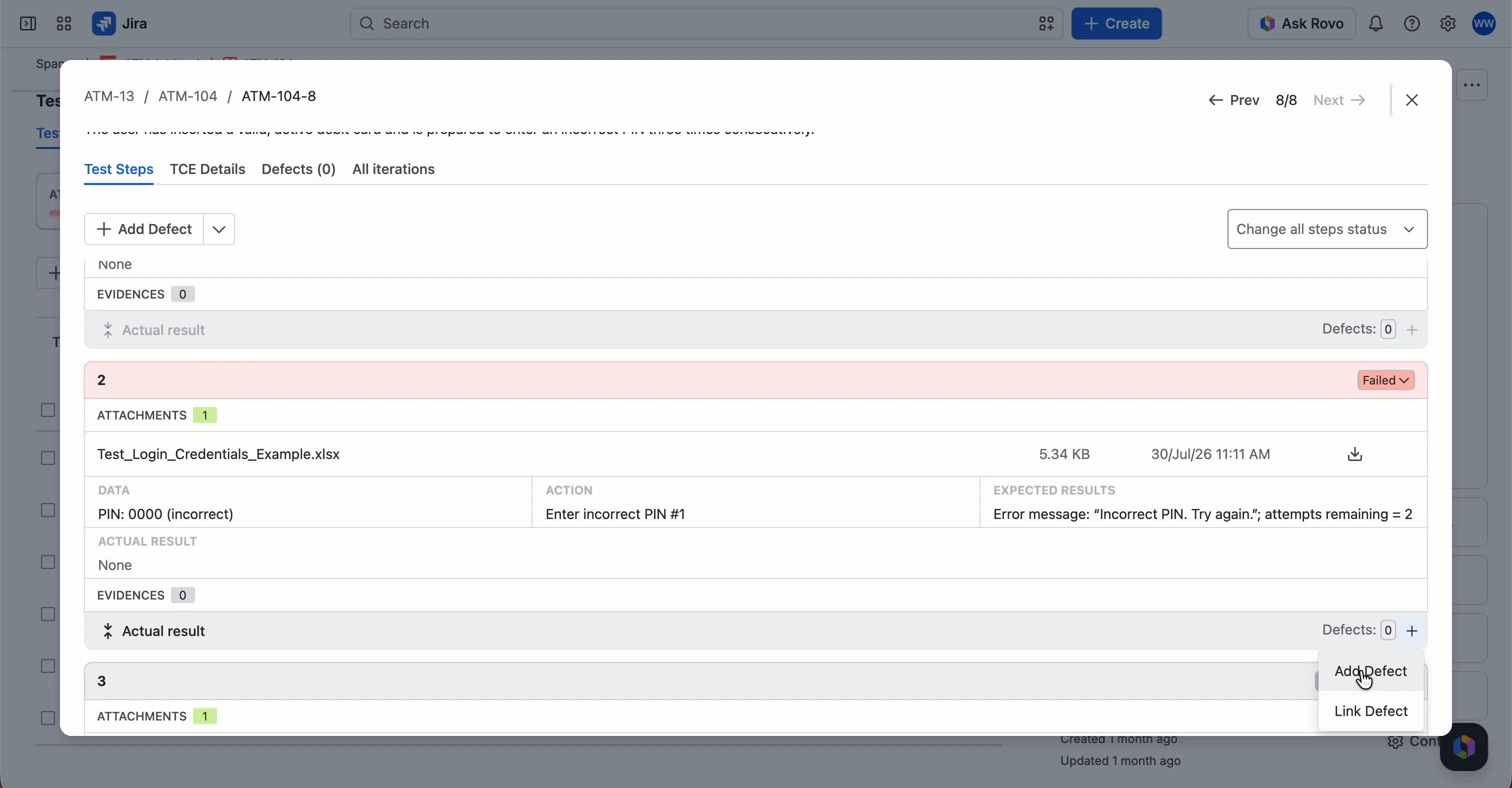
Select Add Defect to create a new defect, or Link Defect to link an existing one.

Create a new defect from a step
On a step, Add Defect opens the Jira Create Bug dialog. Space and Work type (Bug) are already set. ATM also fills in two fields:
- Summary: “Defect from <Test Execution key>”.
- Description: a TCE Link to the Test Execution with its status, and the Data, Action, and Expected Result of the step.

Fill in the other fields and click Create.
The new defect is linked to the Test Case Execution. A defect created from a step is also linked to that step.
Link an existing defect
Link Defect opens the Select Defects window.
- Find the defect. On the Basic search tab, the list is filtered by your space and the defect work type, for example Space: <space>, Bug. Narrow it with Status, Fix versions, Components, or Saved filter. To search with a query, use the Advanced JQL tab.
- Select the defect in the table. The table shows Work key, Summary, Status, Priority, and Components.
- Click Add selected (n). To clear your choice, click Remove selection.

Add a defect to the whole Test Case Execution
A problem can concern the whole Test Case Execution and not a single step. Then use the buttons at the top of the execution window, above the steps.
- To create a new defect, click Add Defect.
- To link an existing defect, click the arrow next to Add Defect and select Link Defect.

The new defect is linked to the Test Case Execution.
Where you see defects
In the execution window, the Defects tab lists the defects of the Test Case Execution. The Relation column shows what each defect is linked to, for example Step 1. The other columns are Defect key, Summary, Priority, Status, Created, Assignee, and Actions. The message “New defect has been linked” confirms a new link.

On a Test Execution, the Defects tab collects the defects from all its Test Case Executions. You can also link a defect to the Test Execution itself, and it appears in this tab too. For a defect of a Test Case Execution, the Relation column shows the key of the Test Case Execution. This table also has the Updated and Fix versions columns. In the Test Case Executions tab, the Defects # column counts the defects of each Test Case Execution.

The message “There are no Defects yet.” appears on a Defects tab without defects.
- On a Test Plan, the Test Executions tab shows the number of defects for each Test Execution.
- On a Test Campaign, the Defects tab shows the defects from all Test Executions of its Test Plans. See Test Campaign.
Unlink a defect
When you unlink a defect, ATM removes only the link. The defect stays in Jira as a work item.
Find defects by environment
You can set the ATM Environments field on a defect, so you can search for defects by environment. The field must be on the screen of the defect work type. If your Testing Project maps defects, saving its configuration adds the field to the defect view. See Testing Elements, Using Jira Fields, and ATM in Jira.
Good practice for failed steps
Every step with the Failed status should have a screenshot in Evidences and a linked defect.