Create Test Execution
You can create a Test Execution like any other Jira work item, from a Test Plan, or from Test Cases selected in the ATM Repository. ATM adds a Test Case Execution for every Test Case in it. For what a Test Execution is, see About Test Execution.
Create a Test Execution in Jira
- In Jira, click Create.
- Select the space and the work type for Test Executions. Your Testing Project maps Test Executions to one space and work type. See Testing Elements.
- Fill in the fields and click Create.
- Open the new Test Execution and add Test Cases with Add Test Case. To link a Test Plan, use Add Test Plan. See Add Test Cases to an existing Test Execution.

From a Test Plan
Open the Test Plan and go to the Test Executions tab in the Test Management panel. The tab lists the earlier runs of the plan with their environment, TE Status, TE Progress, number of defects, and status.
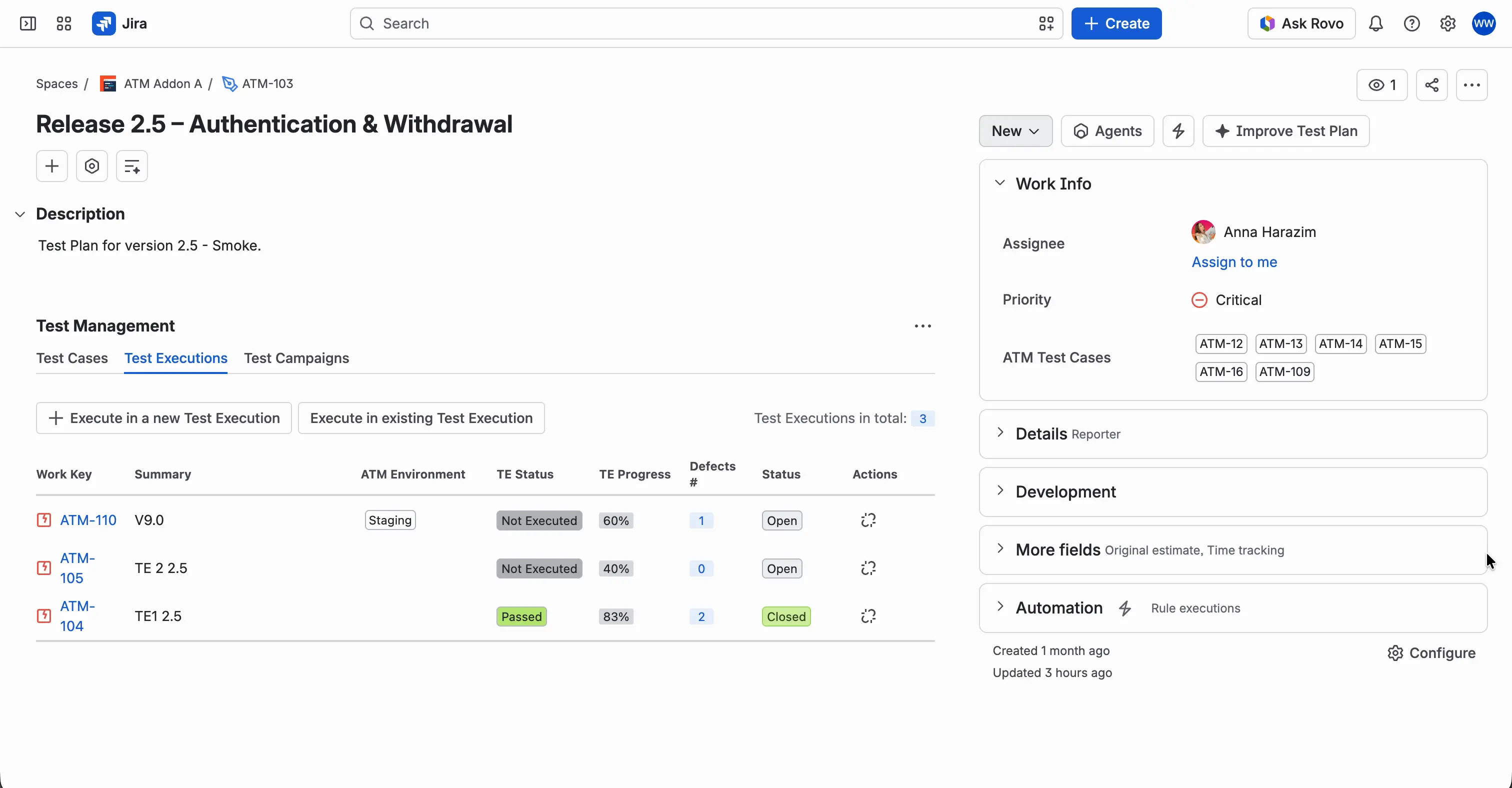
Click Execute in a new Test Execution.
The Create Test Execution dialog opens. Summary is filled in as “Test Execution from <plan key>”, and ATM Test Plans holds the key of the plan.
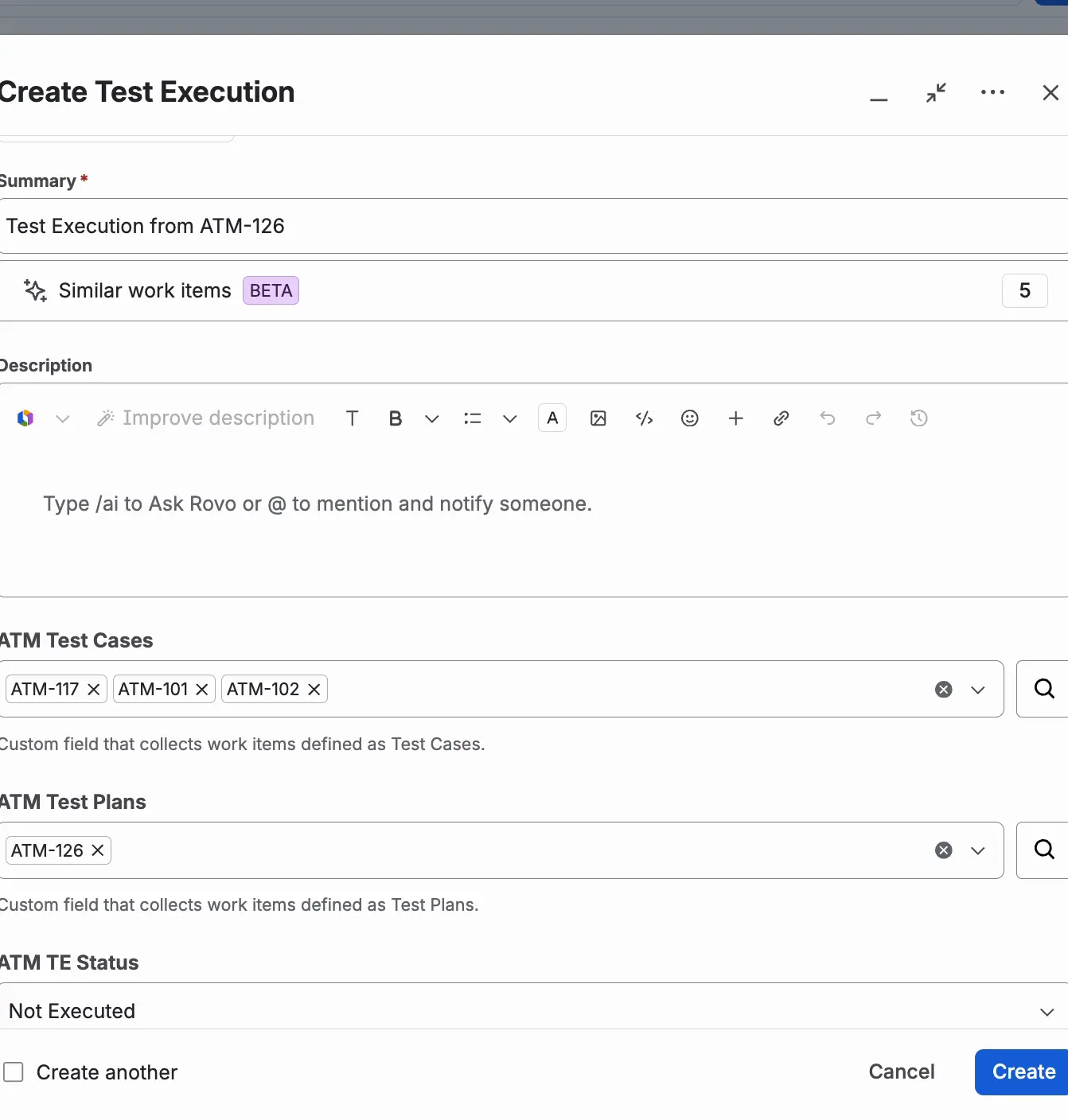
Select the environment of the run in ATM Environments.
Click Create.


The Test Executions tab of the plan lists the new run.

The new Test Execution has a Test Case Execution for every Test Case of the plan, in the same order as in the plan. The ATM Test Cases field on the Test Execution lists the keys of these Test Cases. Each Test Case Execution uses the default version of the Test Case steps, shown in the TC Ver. column. See Steps Versioning.

From the ATM Repository
Open the ATM Repository tab in your space and select a folder.
Select the Test Cases with the checkboxes. You can select Test Cases from several folders, and your selection is kept. In the flat view, you can create a Test Execution for all Test Cases of a folder and its subfolders.
In the action bar at the bottom of the screen, click Create Test Execution.
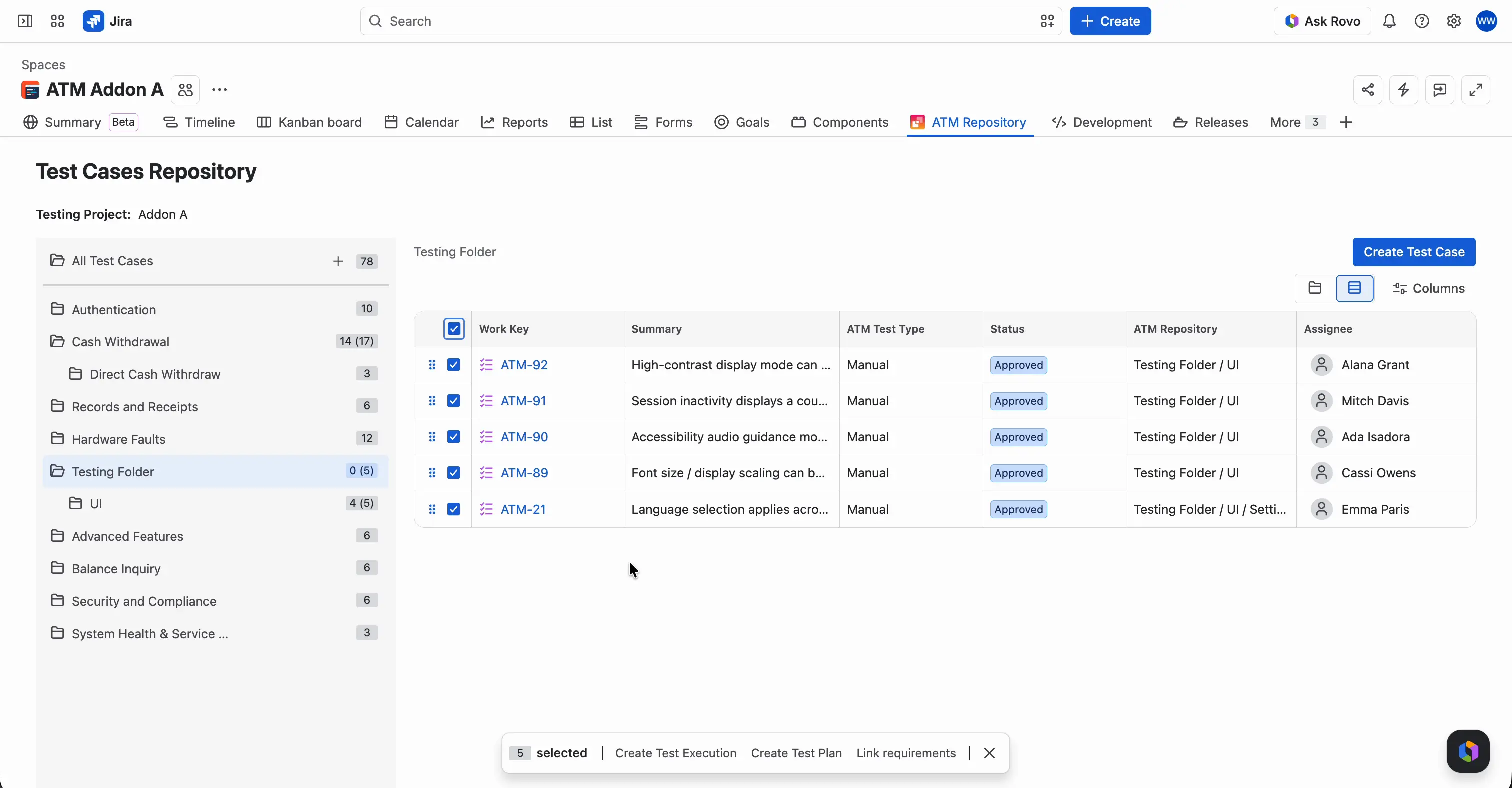
The Create dialog opens. For Test Cases from one folder, the summary is “Test Execution from FOLDER_PATH”, for example “Test Execution from Folder A / Folder B”. For Test Cases from several folders, the summary is “Test Execution from Repository”.
Fill in the other fields and click Create.

See Test Repository for how to work with folders and the flat view.
From a Test Case
Open the Test Executions tab on a Test Case. It has the Execute in a new Test Execution and Execute in existing Test Execution buttons.
Add Test Cases to an existing Test Execution
You can add Test Cases to a Test Execution after you create it. ATM adds a Test Case Execution for each new Test Case.
- To add single Test Cases, click Add Test Case on the Test Execution.
- To link a Test Plan, click Add Test Plan on the Test Execution. This doesn’t add new Test Case Executions. ATM adds all Test Cases of a Test Plan automatically only when you create a new Test Execution from that Test Plan.
Add an existing Test Execution to a Test Plan
On the Test Executions tab of a Test Plan, click Execute in existing Test Execution. It adds a Test Execution that already exists to the plan. This doesn’t change the scope of the Test Execution.
A warning appears after you create a new Test Execution from a plan, if the Test Execution contains Test Cases that are not in the plan. It also appears after you click Execute in existing Test Execution. You can add the missing Test Cases to the plan or click Do not modify test plan. For details, see Add an existing Test Execution.
Set the environment and version
On a Test Execution, you usually set the environment and the version:
- The environment, in ATM Environments.
- The version, for example in Fix versions.
You don’t have to use these two fields. If your team keeps the environment and the version in other fields, for example a combined Versions field, use those fields instead. See Using Jira Fields.
To work with the Test Case Executions of the run, see Run Test Execution.