Coverage with Test Case
To cover a requirement with tests, link Test Cases to it. The connection is a standard Jira link of the type set in your Testing Project, so you can create it from both sides: from the requirement or from the Test Case.
The links feed the Coverage and Traceability reports. To learn how ATM knows which work items are requirements, see About Requirement.
Where you can link requirements and Test Cases
- On the requirement, in the Test Management panel.
- On the Test Case, in the Requirements tab of the Test Management panel.
- In the Test Repository, for many Test Cases at once. Select the Test Cases and click Link requirements in the bar at the bottom. See Test Repository.
Link Test Cases from a requirement
Open the requirement, for example an Epic. The Test Management panel shows the linked Test Cases and the coverage:
- The Test Cases header with a coverage badge. In the screenshot, the badge is COVERED.
- Total work items, the number of linked Test Cases.
- The Coverage report link.
- A table with the Key, Summary, Status, and ATM Test Type columns.
The panel has three buttons: Create a new Test Case, Link an existing Test Case, and Create with Rovo Agent.

Link an existing Test Case
On the requirement, click Link an existing Test Case.
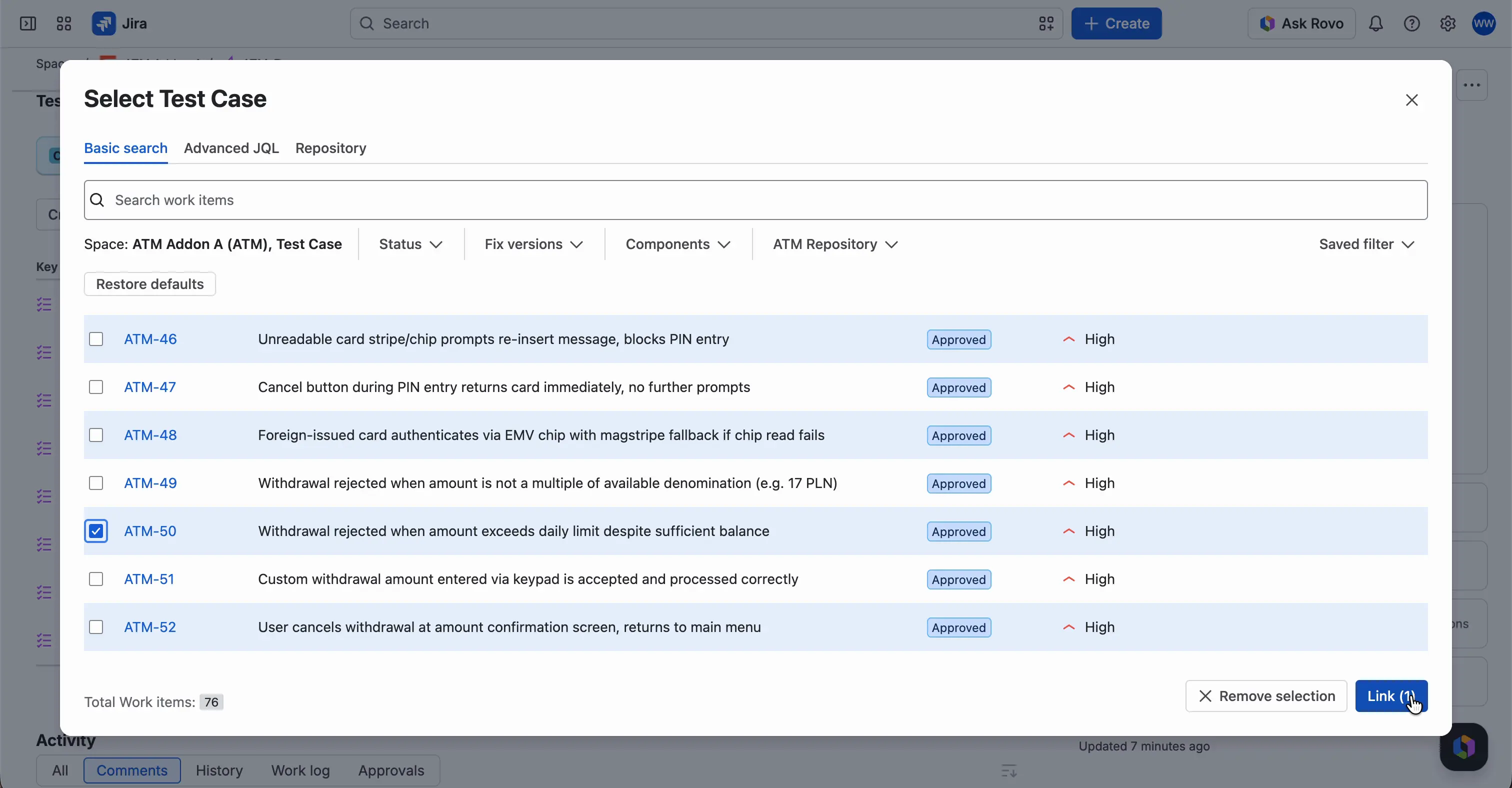
The Select Test Case window opens with three tabs: Basic search, Advanced JQL, and Repository.
By default, Basic search filters by your space and the Test Case work type. To narrow the list, use the Status, Fix versions, Components, and ATM Repository filters, or a Saved filter. Restore defaults brings back the default filters.
The list shows Work key, Summary, Status, Priority, and Components. Total Work items under the table shows how many Test Cases match.
Select one or more Test Cases. To clear your choice, click Remove selection.
Click Link. The button shows the number of selected Test Cases, for example Link (1).

Create a new Test Case
If the test doesn’t exist yet, click Create a new Test Case. The Create Test Case window opens with the work type Test Case. The summary is filled in as “Test Case from <requirement key>”. To fill in the other fields, see Create Test Case.

Use the Rovo Agent
Create with Rovo Agent starts an AI agent that proposes Test Cases for this requirement. See Create Test Cases with the Rovo Agent.
Link requirements from a Test Case
Open the Test Case. In the Test Management panel, select the Requirements tab.
The tab has two buttons: Create a new Requirement and Link an existing Requirement. Requirements in total shows how many requirements the Test Case has. Without requirements, the tab shows “This Test Case doesn’t have any Requirements yet”.

Link an existing requirement
In the Requirements tab, click Link an existing Requirement.
The Select Requirement window opens. By default, it shows the work type configured as a requirement in your Testing Project, for example Epic. Saved filter, Restore defaults, and Total Work items work as in the Select Test Case window.
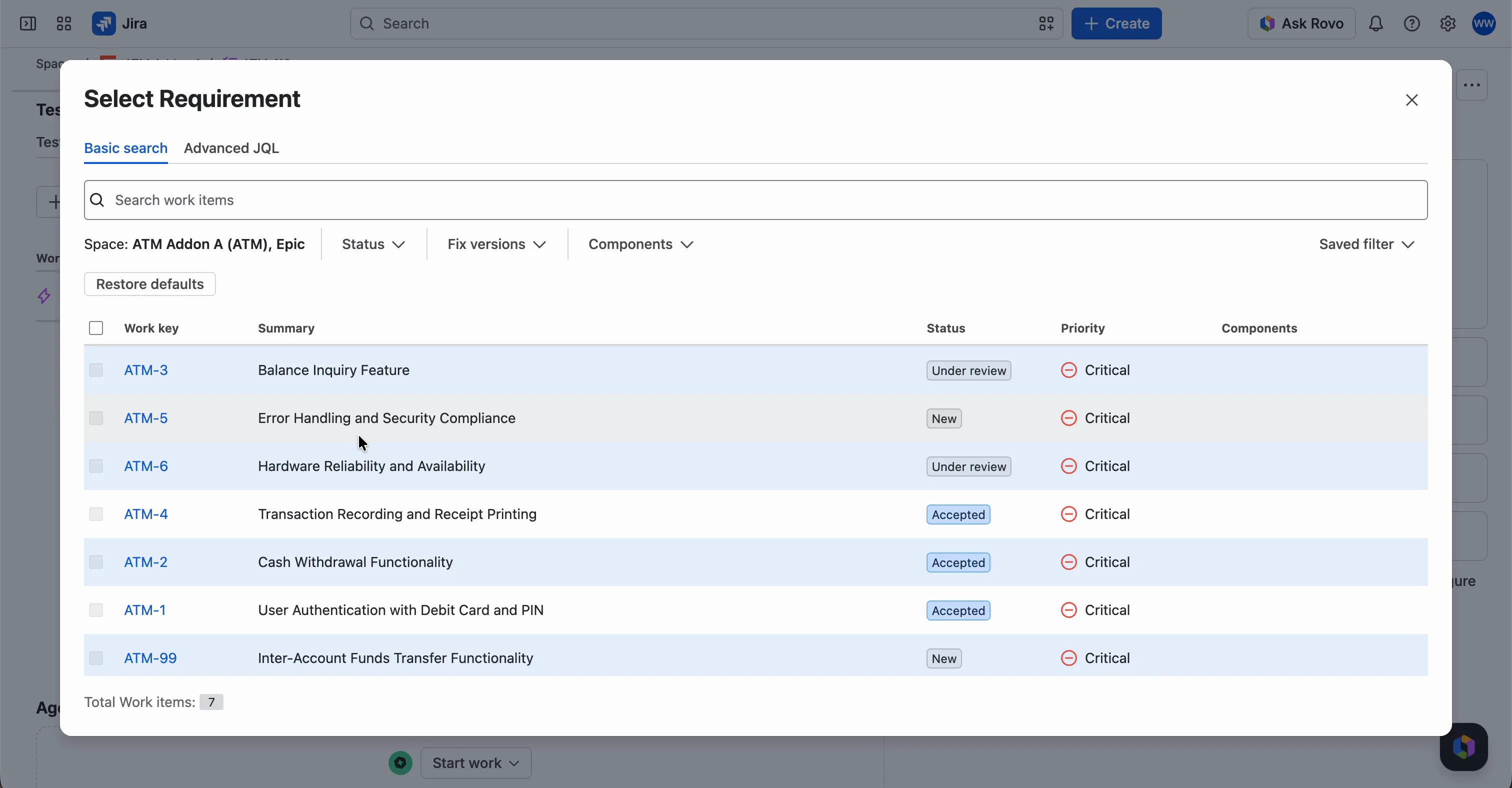
Select one or more requirements. You can link several at once. A requirement that is already linked to this Test Case has an inactive checkbox.
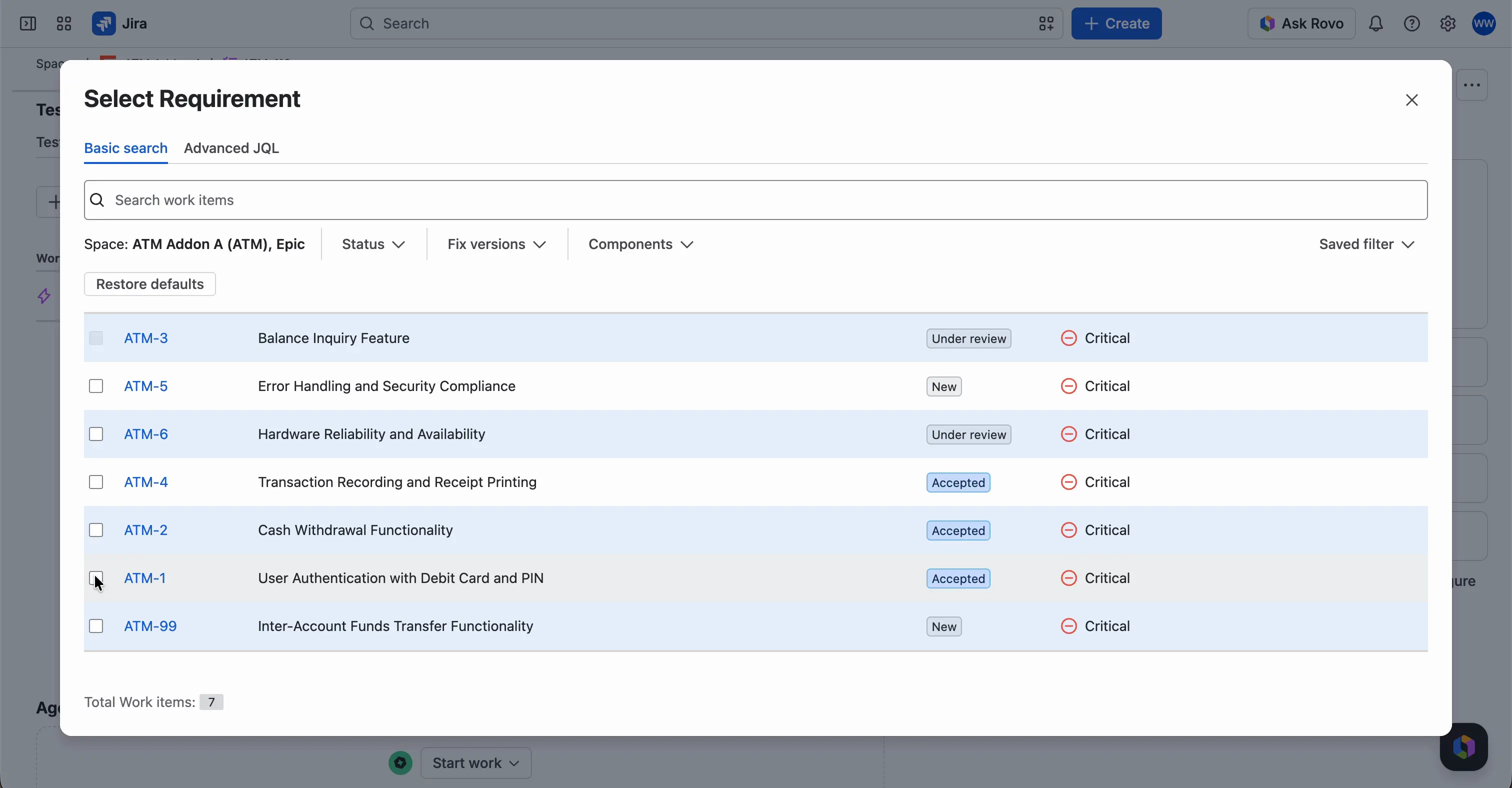
Click Link. The button shows the number of selected requirements, for example Link (2).


A message confirms the links, for example “2 link(s) created successfully.” The requirements appear in the table.

Create a new requirement
If the requirement doesn’t exist yet, click Create a new Requirement. The Create window opens with the requirement work type from your Testing Project configuration, for example Epic. The summary is filled in as “Requirement for <Test Case key>”. The new work item is linked to this Test Case right away.

Unlink a requirement
On the Test Case, in the Requirements tab, click the unlink icon in the requirement’s row.

ATM asks you to confirm. In the Unlink Requirement? window, click Unlink. To keep the link, click Cancel.


The message “Link removed successfully.” confirms the change.
See the link in Jira
The link is a regular Jira link. In Linked work items, the requirement and the Test Case show the link with the names of the link type set in your Testing Project. With the recommended link type, the requirement shows the Test Case as “is tested by”, and the Test Case shows the requirement as “tests”.
This link type comes from the sample project, and we recommend it. The Testing Project wizard has no default link type. Each Testing Project can use a different link type. See Testing Elements.
Check coverage
To see which requirements have Test Cases, open the reports in Apps › Test Management › Reports. On a requirement, you can also click Coverage report in the Test Management panel. See Coverage Report and Traceability Report.