
Request Progress Tracking in JSM: Setup and 6 Examples
Set up Ticket Journey in Feature Bundle to show request progress on the JSM portal, step by step, with 6 examples from shipping to IT support.

Customers often don’t know exactly where their request stands or how much longer it will take. The Ticket Journey feature (formerly Request Steps) in Appsvio’s Feature Bundle shows request stages visually on the Jira Service Management customer portal. That way, customers can quickly see not just the status, but also what’s coming next and how far they are from resolution.
How It Works
Ticket Journey shows the steps of a request on the portal, either as a vertical timeline (the default) or as a horizontal progress bar. Completed, active, and upcoming steps are marked in different colors, which you can match to your branding.
To set it up:
- Log in to Jira with the Project Administrator permission.
- Go to Space settings → Apps → Ticket Journey.
- Select a request type from the list on the left. A blue dot means Ticket Journey is already active for it.
- Choose the layout: Vertical (default) or Horizontal.
- (Optional) Add a title, for example “Incident Resolution Tracker”.
- Click Add a step. For each step, enter a name, a description, and a JQL condition, for example
status = "In Progress". The step becomes active when the request matches the condition. - (Optional) Click Translate to translate step names and descriptions.
- To match your branding, go to Settings → Configure colors and set HEX codes for the title and for previous, active, and upcoming steps.
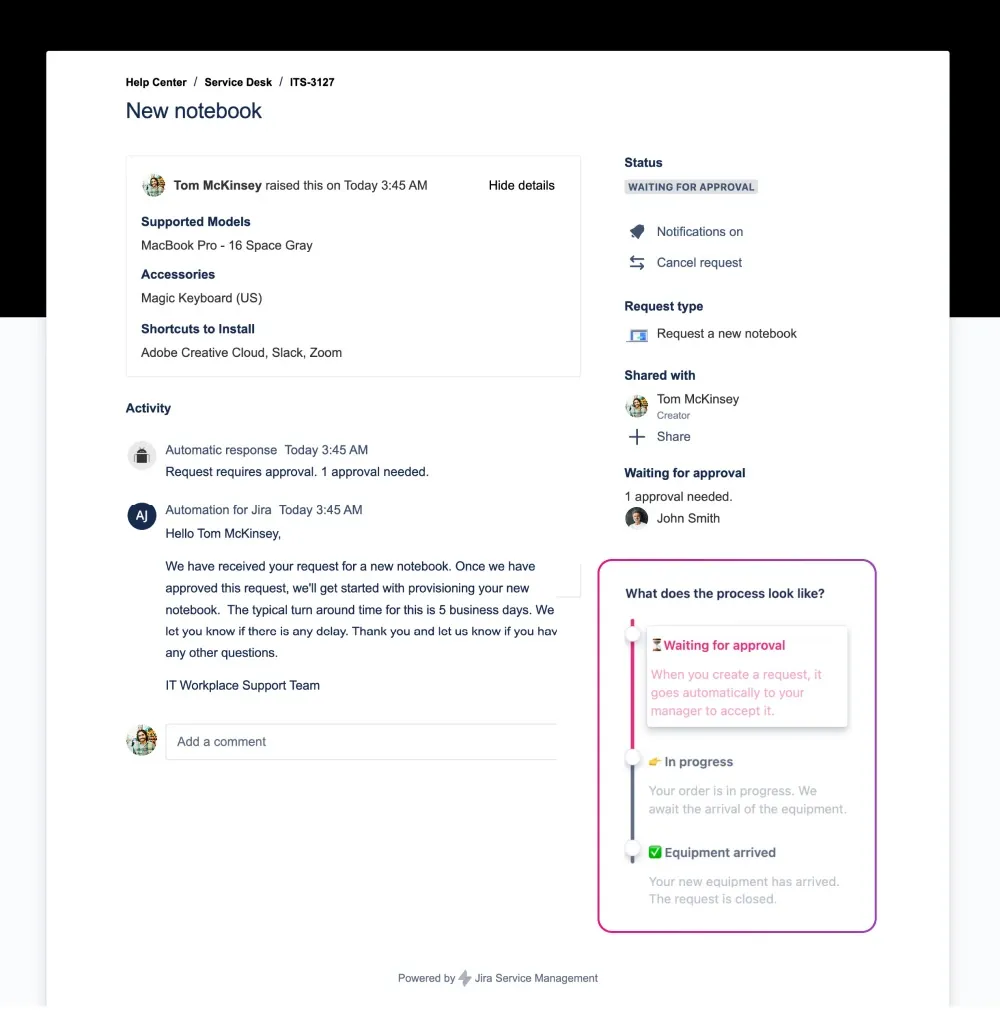
Once configured, users see the steps on the portal, helping them know exactly where they stand.
Why It Matters
Greater transparency: Customers can see the full journey - not just labels like “In Progress.”
Reduced uncertainty: When you outline stages clearly, you cut down on questions like “Where is my request?”
Improved satisfaction: Visibility lowers frustration and helps manage expectations.
Agent bandwidth saved: Agents spend less time fielding status questions and more time resolving cases.
Use Cases With Examples
1. Online Order Tracking
A common use case: a shipping order. The portal shows steps like Order Received → In Warehouse → Shipped → Delivered. Customers immediately know what’s done and what’s next.
2. New Client Onboarding
Steps could be Request Submitted → Needs Review → Assigned → In Progress → Completed. Clients can follow their onboarding’s progress without sending extra messages.
3. Handling a Product Return or Repair
A typical path: Return Requested → Item Received → Diagnosis → Repair → Shipped Back → Closed. The customer portal reflects where the return currently is and what’s pending.
4. Digital Product Delivery
For e-books or software access: Order Placed → Payment Confirmed → File Prepared → Access Granted. This is clearer than a single “In Progress” label.
5. IT Support Ticket
Steps might be Received → Reviewing → Technician Assigned → Work in Progress → Resolved. Employees know their ticket is being handled, and have context throughout the process.
6. Corporate Request (e.g. Laptop Purchase)
Consider Tom, a graphic designer ordering a laptop. Admin Greg configures Ticket Journey with clear step names and colors, and adds a Jira automation rule that leaves a public comment when a step changes. Tom logs into the portal and sees the full workflow, keeping him informed at each stage. That transparency leads to better communication, fewer questions, and happier users.
Best Practices for Clear Communication
Include extra context: Beyond the steps, consider showing the assignee, linked issues, or any blockers in the portal view.
Use meaningful labels: Avoid vague terms like “In Progress.” Instead, use stages that describe real milestones (e.g., “In Warehouse,” “Diagnosis”).
Leverage automation: Trigger public portal comments when a ticket changes stage—customers stay updated without reaching out.
Reuse configurations: If several spaces share similar workflows, use Settings → Copy configuration to copy steps to other request types and spaces.
Simplify setup with JQL: JQL mapping allows flexible status grouping within steps.
Stay portal-focused: All messaging should serve customer clarity rather than internal process descriptions.
Summary Table
| Benefit | Impact for Customers and Teams |
|---|---|
| Transparent Process Flow | Clients see exactly where their request stands |
| Lower Friction and Questions | Reduces status-check messages to support agents |
| Consistent Expectations | Visual steps match the actual progress stages |
| Reusable Configuration | Save time by copying step setup across projects |
| Automated Updates | Keeps customers informed without manual intervention |
Key Takeaways
Status mapping on the portal offers only a one-dimensional view. Customers can see the current status, but they don’t know how far their request has progressed or when to expect completion. The Ticket Journey feature in Feature Bundle fills this gap by showing the entire journey of the request. To see how it compares with native portal statuses, read how to show request progress on the JSM customer portal.
For related topics on Jira Service Management, you may find these resources useful:
Set up Ticket Journey
Show customers every step of their request on the JSM portal with Feature Bundle.
Go to Atlassian MarketplaceIf you would like additional information, you can reach us through our Customer Portal or schedule a demo session via Calendly.
This article was updated on October 21, 2026.
Related posts
Katarzyna Pawlak
•Sep 24, 2026
Dariusz Jaroń
•Aug 12, 2026